Installing LM Studio with Vulkan Support on AMD Strix Halo
Automated installation script for LM Studio on AMD Ryzen AI Max 395 with Vulkan backend configuration for optimal performance.
SmartTechLabs
SmartTechLabs - Intelligent Solutions for IoT, Edge Computing & AI
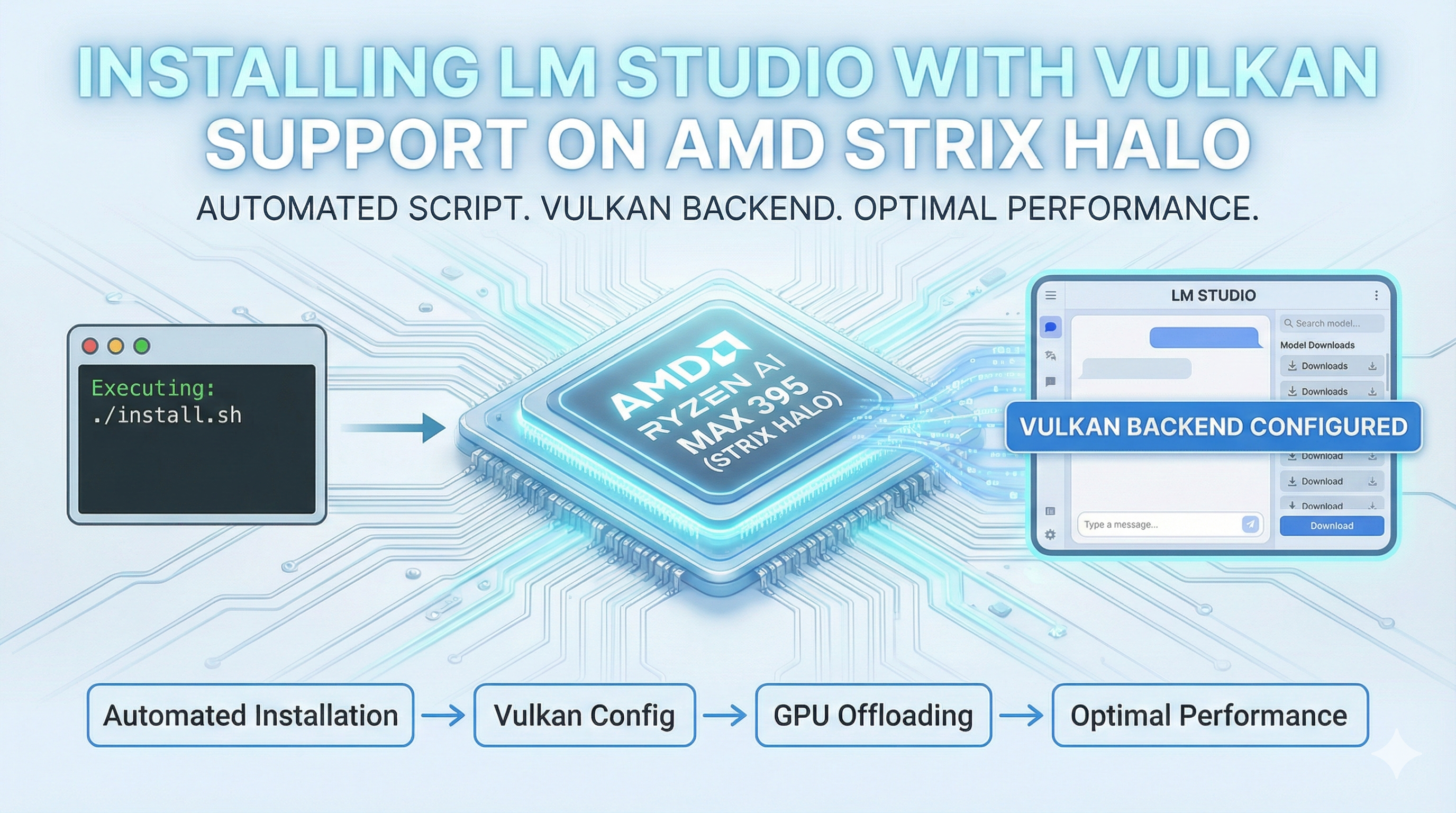
Local LLMs on Strix Halo
AMD’s Ryzen AI Max 395 with its massive unified memory pool is an excellent platform for running local LLMs. LM Studio provides a user-friendly interface for downloading and running models, but getting optimal performance on Strix Halo requires the right backend configuration.
The Challenge
LM Studio supports multiple compute backends:
| Backend | Best For |
|---|---|
| CUDA | NVIDIA GPUs |
| Metal | Apple Silicon |
| Vulkan | AMD GPUs, cross-platform |
| CPU | Fallback, slower |
For AMD’s gfx1151 architecture, Vulkan provides the best combination of compatibility and performance. However, manually configuring this after each LM Studio update can be tedious.
Our Solution
We’ve created strix-halo-lmstudio, an installation script that:
- Downloads the latest LM Studio AppImage
- Configures Vulkan as the default backend
- Sets up proper GPU detection for gfx1151
- Creates desktop integration
Quick Install
| |
Why Vulkan?
While ROCm provides excellent compute capabilities, LM Studio’s Vulkan backend offers several advantages on Strix Halo:
| Advantage | Description |
|---|---|
| Compatibility | Works without ROCm-specific builds |
| Stability | Mature graphics API with wide support |
| Performance | Efficient memory management for large models |
| Simplicity | No complex ROCm configuration required |
Performance Expectations
On AMD Ryzen AI Max 395 with 128GB unified memory:
| Model Size | Tokens/sec | Notes |
|---|---|---|
| 7B (Q4) | 30-40 | Fast, responsive |
| 13B (Q4) | 20-30 | Good for most tasks |
| 30B (Q4) | 10-15 | Fits in memory |
| 70B (Q4) | 5-8 | Requires ~40GB |
The unified memory architecture allows loading models that wouldn’t fit on discrete GPUs with limited VRAM.
Configuration Details
The script configures LM Studio with:
| |
This ensures:
- Vulkan backend is used instead of CPU fallback
- The GPU is auto-detected
- All model layers are offloaded to GPU
Troubleshooting
GPU Not Detected
Ensure Vulkan is properly installed:
| |
Slow Performance
Check that GPU layers are being used:
- Open LM Studio settings
- Verify “GPU Layers” is set to maximum
- Monitor GPU usage with
rocm-smior our rocm_info tool
Out of Memory
Reduce model quantization or try a smaller model. The unified memory allows large models but system stability matters.
Get Started
Repository: smarttechlabs-projects/strix-halo-lmstudio
Running local LLMs on AMD hardware has never been easier. Give it a try and let us know your experience!
Want to deploy local LLMs in your organization? Contact us for consulting and integration services.
SmartTechLabs
Building Intelligent Solutions: IoT, Edge Computing, AI & LLM Integration
Related Articles
Running ComfyUI on AMD Ryzen AI Max 395 (Strix Halo)
The Challenge AMD’s Ryzen AI Max 395 (Strix Halo) represents a new era in APU computing with …
Read moreFixing ROCm Boot Issues: amdgpu Module Blacklisted
The Problem After installing ROCm on a fresh Linux system, you reboot and… your AMD GPU …
Read moreReal-Time ROCm GPU Monitoring with Web Dashboard
The Problem When running AI workloads on AMD GPUs with ROCm, visibility into GPU performance is …
Read more